Plug in a controller and play (Windows and Mac)
From "I have a controller" to "I'm playing" in a couple of minutes. Pick the section for your controller. The fastest way is first. This page covers Windows 10 / 11 and macOS 13 or newer.
Before you start: open Plugin Player and leave it open the whole time. On Windows, Plugin Player can pair a PlayStation controller or an 8BitDo Micro for you. On a Mac, pair every Bluetooth controller in System Settings → Bluetooth using the steps below.
Jump to: Mac Bluetooth · 1. USB cable · 2. PlayStation · 3. Xbox · 4. 8BitDo Micro · 5. Paired before, won't connect now · 6. Connects, then drops · 7. Now play · 8. Which controller to get
On a Mac: pair in System Settings
- Open Apple menu → System Settings → Bluetooth and turn Bluetooth on.
- Put your controller in pairing mode:
- PS5 (DualSense): hold CREATE + PS together for 3–5 seconds, until the light flashes fast.
- PS4 (DualShock 4): hold SHARE + PS together for 3–5 seconds, until the light bar flashes fast.
- Xbox: turn it on, then hold the small pair button on top for about 3 seconds, until the Xbox button flashes fast.
- 8BitDo Micro: slide the mode switch to D, then hold PAIR for 3 seconds, until the light blinks fast.
- Another controller: use the pairing steps in its manual.
- Under Nearby Devices, click Connect next to the controller. Its name is normally DualSense Wireless Controller (PS5), Wireless Controller (PS4), Xbox Wireless Controller, or 8BitDo Micro gamepad.
- Go back to Plugin Player and press any button on the controller.
The automatic Plugin Player pairing described in sections 2–5 is Windows-only. On a Mac, macOS does the pairing in System Settings. Next time, turn the controller on or press its home button; if it does not reconnect, open System Settings → Bluetooth and connect it there.
1. Fastest: a USB cable (any controller)
- Plug the controller into the computer with a USB cable.
- Open Plugin Player.
- Press any button on the controller.
Done. Plugin Player draws your controller on screen and you are playing. Go to 7. Now play.
- Nothing happens? Some cables only charge and carry no data. Try another one (the cable that came with a phone usually works) and push it all the way in.
- Why press a button? Windows only shows a controller to an app after its first button press. That's normal.
- 8BitDo Micro: we've tested it over Bluetooth (section 4). Its USB-C cable charges it while you play.
2. PlayStation controller (DualSense / DualShock 4) over Bluetooth
PS5 controller = DualSense (also the DualSense Edge). PS4 controller = DualShock 4.
On a Mac, use the System Settings steps above.
The easy way on Windows: let Plugin Player pair it. This is easier than Windows Settings: no menus, no picking the right name from a list.
- Open Plugin Player.
- Put the controller in pairing mode:
- PS5 (DualSense): hold CREATE (the small button left of the touchpad) and PS together for 3 to 5 seconds.
- PS4 (DualShock 4): hold SHARE (left of the touchpad) and PS together for 3 to 5 seconds.
- Let go when the light flashes fast, two blinks at a time. That's pairing mode.
- Put it down and wait 10 to 30 seconds. Plugin Player finds it and pairs it.
- Press any button. You'll see PLAYSTATION on screen (section 7 shows where).
Careful: holding PS alone also makes the light blink, but that means "go back to my PlayStation". Nothing on the computer will find it. Always hold the two buttons together.
The Windows way (if you prefer, or if the easy way didn't work):
- Put the controller in pairing mode (steps 2 and 3 above).
- Open Start › Settings › Bluetooth & devices › Add device › Bluetooth. (Windows 10: Settings › Devices › Bluetooth & other devices › Add Bluetooth or other device › Bluetooth.)
- Pick the controller from the list. It's called DualSense Wireless Controller (PS5) or Wireless Controller (PS4). Windows lists everything nearby (lights, speakers, TVs), so pick that name and nothing else.
- Wait for Connected, then press any button.
Inside Plugin Player, CONTROLS › CONNECT A CONTROLLER › OPEN BLUETOOTH SETTINGS opens that same Windows page.
Next time: just press PS. It reconnects in a second or two. Press any button.
Used it on your PlayStation since? A PlayStation controller remembers one machine at a time. After playing on your PS4 or PS5, do the pairing again (hold CREATE / SHARE + PS). On Windows, Plugin Player clears the old pairing and pairs it fresh by itself; on a Mac, connect it again in System Settings.
3. Xbox controller (Series / One) over Bluetooth
Plugin Player doesn't pair Xbox controllers itself. Use the Windows steps below or the Mac System Settings steps above. A USB cable is still the fastest (section 1).
- Press the Xbox button to turn the controller on.
- Open Start › Settings › Bluetooth & devices › Add device › Bluetooth. (Windows 10: Settings › Devices › Bluetooth & other devices › Add Bluetooth or other device › Bluetooth.) From Plugin Player: CONTROLS › CONNECT A CONTROLLER › Xbox › OPEN BLUETOOTH SETTINGS.
- On the controller, hold the small pair button on top (next to the USB port) for about 3 seconds, until the Xbox button blinks fast.
- Pick Xbox Wireless Controller from the list.
- Wait for Connected, then press any button. You'll see XBOX on screen.
Xbox Wireless Adapter (the small USB stick made for Xbox controllers): if you have one, plug it in and pair the controller to it the way its box says. Plugin Player sees it as an Xbox controller, the same as Bluetooth.
Windows never finds it? Some older Xbox One controllers have no Bluetooth at all. Use a USB cable or the adapter.
Next time: press the Xbox button, then any button.
4. 8BitDo Micro
- Slide the switch on the Micro to D. D is the gamepad mode, the one Plugin Player knows. In K the Micro pretends to be a keyboard and in S a Nintendo Switch controller: Windows may still say Connected, but Plugin Player sees nothing.
- Open Plugin Player.
- Hold PAIR (the small button on the bottom edge) for 3 seconds, until the light blinks fast. A slow blink means "looking for the last thing I was paired with". That's not pairing mode.
- On Windows: put it down and wait up to about 30 seconds. Plugin Player pairs it by itself. On a Mac: choose 8BitDo Micro gamepad under System Settings → Bluetooth → Nearby Devices and click Connect.
- Press any button. You'll see 8BITDO MICRO on screen.
The Windows way (only if the steps above didn't work): switch on D, hold PAIR 3 s, then Start › Settings › Bluetooth & devices › Add device › Bluetooth and pick 8BitDo Micro gamepad. Give it up to a minute. (Windows 10: Settings › Devices › Bluetooth & other devices › Add Bluetooth or other device.)
Next time on Windows: press Start. If it doesn't come back in a few seconds, hold PAIR for 3 seconds. On a Mac: press Start, then any button; if it does not reconnect, click Connect beside it in System Settings → Bluetooth.
Other 8BitDo controllers (an SN30 Pro, an Ultimate…): plug them in with a cable, or pair them in Windows Settings / macOS System Settings. Plugin Player recognizes 8BitDo controllers and draws them as the Micro. An 8BitDo in X mode shows up as an Xbox controller. Only the Micro has been tested so far. If the picture on screen is wrong, pick yours in CONTROLS › CONTROLLER.
More about the Micro (the switch, the light, every way it goes wrong): PAIRING_8BITDO.md.
5. "I paired it before and now it won't connect"
This happens when Windows still remembers an old pairing that the controller no longer accepts. Typical signs: it connects for a second, drops, and the light goes back to slow blinking.
What Plugin Player does by itself (8BitDo Micro and PlayStation controllers):
- Keep Plugin Player open.
- Put the controller in pairing mode (Micro: switch on D, hold PAIR 3 s. PlayStation: CREATE / SHARE + PS).
- Wait. Plugin Player spots the old Windows pairing, removes it, and pairs the controller fresh. Today this takes about 30 seconds, and the screen may not say much while it works. Leave the controller on and close by.
- Press any button.
The manual fix (any controller, and the only way for an Xbox controller):
- Open Start › Settings › Bluetooth & devices. (Windows 10: Settings › Devices › Bluetooth & other devices.)
- Find the controller in the list (8BitDo Micro gamepad, DualSense Wireless Controller, Wireless Controller, Xbox Wireless Controller). If it's there more than once, do every copy.
- Click ⋯ next to it › Remove device › Yes. (Windows 10: click it › Remove device.)
- Pair it again, fresh, with the steps for your controller (sections 2 to 4).
6. "It connects, then drops"
- 8BitDo Micro: turn it OFF and ON. If Plugin Player says "Your 8BitDo is paired but won't link", hold Start for 3 seconds (off), press Start (on), then press any button. Sometimes Windows drops the 8BitDo a second after it wakes; a fresh power-on fixes it.
- Charge it. A low battery is the most common reason. A tired controller can connect and drop again within a second or two. Charge it for a while, or play on a USB cable (it charges while you play).
- Try another cable. On a cable, a drop after a few seconds usually means a loose or charge-only cable.
- One controller at a time. Plugin Player plays from one controller. If several are connected, turn off the ones you're not using.
- One home at a time. A controller paired to something else nearby (your PlayStation, a phone) may connect to that instead. Turn that device off or turn its Bluetooth off.
- Steam or DS4Windows running? They can make a PlayStation controller look like an Xbox controller, so the picture on screen is wrong. Close them, or pick your controller in CONTROLS › CONTROLLER.
Still stuck? FEEDBACK / REQUEST at the bottom of the window, tick include support info, and tell us what you pressed and what you saw. More fixes: TROUBLESHOOTING.md.
7. Now play: your first 60 seconds
How to see it's connected
- A note pops up over the picture: PLAYSTATION CONTROLLER CONNECTED: READY (or XBOX, or 8BITDO MICRO).
- The CONTROLLER chip at the top of the window gets an orange dot. On a smaller window it only says CONTROLLER; hover it to read the name.
- The CONTROLLER card on the PERFORM screen says LIVE · PLAYSTATION (or XBOX, or 8BITDO MICRO), and the little controller picture lights up each button as you press it.
- Want a big picture? Open the CONTROLS tab (F3): Auto (found: PlayStation), and every button you press lights up.
- If it says CONNECTED · PRESS ANY BUTTON, press a button.
| PlayStation | Xbox | 8BitDo Micro |
|---|---|---|
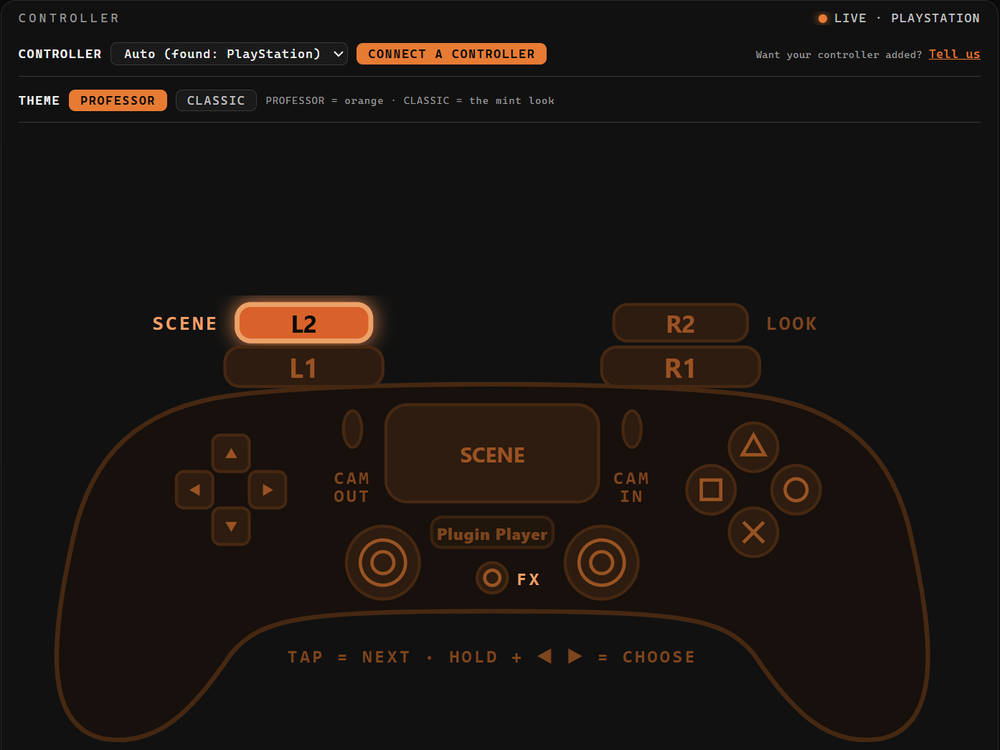 | 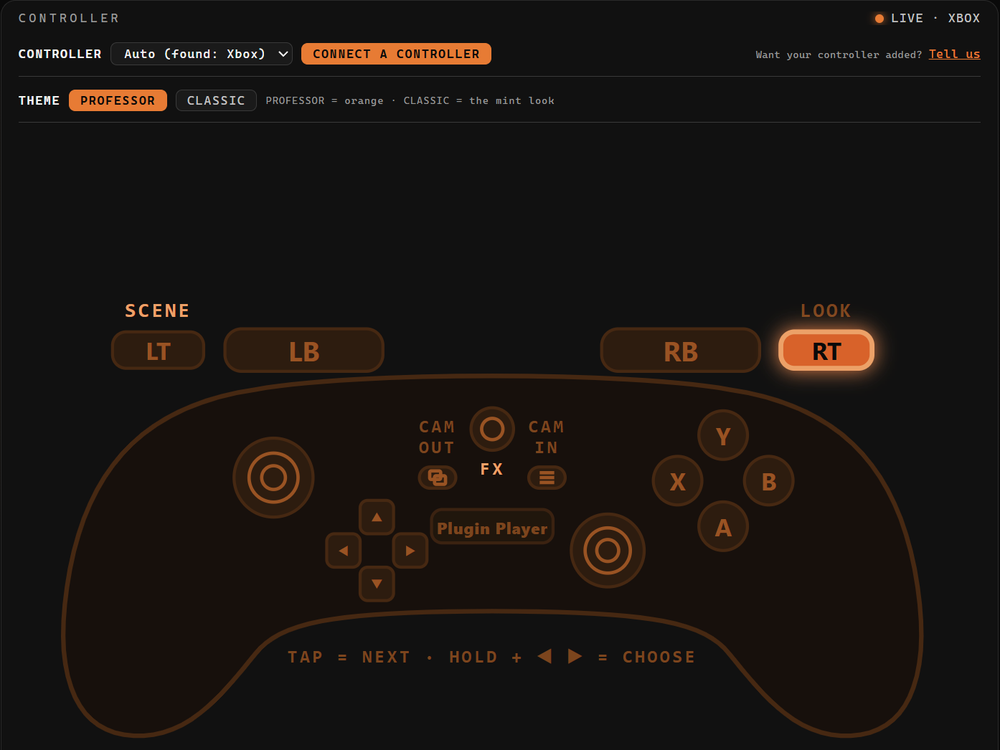 | 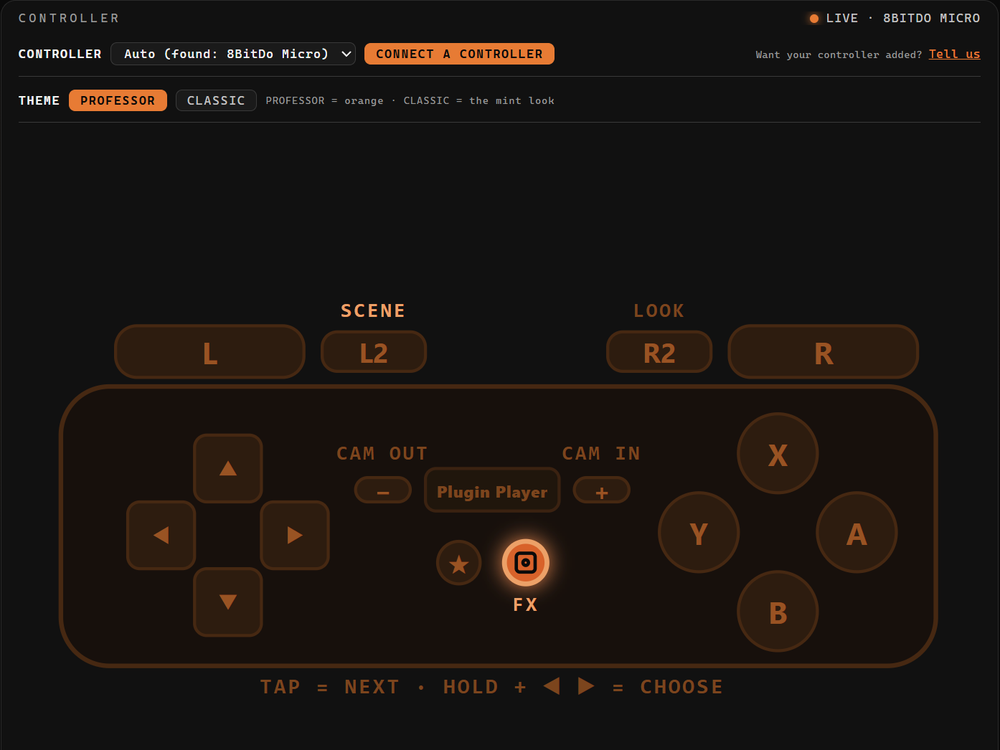 |
The buttons that matter most
Same job on every controller, in the same spot.
| What it does | PlayStation | Xbox | 8BitDo Micro |
|---|---|---|---|
| Next scene (tap). Double-tap = back to the last one | L2 (or click the touchpad) | LT | L2 |
| Next preset of this scene (tap) | R2 | RT | R2 |
| The face buttons: this scene's own tricks (spin, flash, random look…). The bar at the bottom of the window says what each one does right now | △ ○ ✕ □ | Y B A X | X A B Y |
| Effect Layer (a fluid over any scene): on: + = effect on, − = effect off, ◀ ▶ = the fluid, ✕ = a shockwave, ○ = an ink burst, △ = electric (again = back), □ = reaction pattern on / off, ▲ ▼ = energy | PS | Xbox button, or hold View + Menu ½ s | ⊡ (the checkered button) |
| Your camera onto the scene / off the scene | OPTIONS / CREATE (PS4: SHARE) | Menu / View | + / − |
Two more you'll want soon: hold L2 (LT) and press ◀ ▶ to choose a scene, hold R2 (RT) and press ◀ ▶ to choose a preset. If a scene leaves the face buttons free, top = next preset, bottom = previous preset, left = reset the preset.
If the Xbox button opens the Windows Game Bar instead, use View + Menu for the Effect Layer.
Every button in every scene: CONTROLLER_MAP.md. The full controller guide: CONTROLLER.md. Any button can be moved on the CONTROLS tab.
8. Which controller should I get?
Already have a PlayStation or Xbox controller? Use it. If you're buying one, Plugin Player is designed around the 8BitDo Micro: small, cheap, and every one of its buttons does something.
Also in the app: CONTROLS › CONNECT A CONTROLLER has these steps for each controller. Short version: CONNECT_A_CONTROLLER.md.